• Tutorial 002 ▪▪ Paintshop Pro 7+ ▪▪ Photoshop 7+
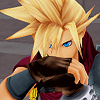
| From This: |
To This: |
 |
 |
|
Take your base image (I'm using this as mine), crop and resize to 100x100, sharpen, lighten etc. |
|
Create a new layer, and fill with #314C6D. Set to 'Exclusion' at 85% opacity.
|
|
Create a new layer, and fill with #A1CDFF. Set to 'Soft Light' at 50% opacity. |
|
Create a new layer, and fill with #EF8405. Set to 'Soft Light' at 100% opacity. |
|
Duplicate your base and drag it to the top. Set to 'Darken' at 100% opacity.
I decided not to add any text or brushes this time, but you can if you wish.
For different results, try changing the colours and opacity of some of the layers. |
</tr>
Other Icons Made Using This Method
scribbld is part of the horse.13 network
Design by Jimmy B.
Logo created by  hitsuzen.
Scribbld System Status